Help Center
How to Add Contacts/Subscribers
New Contact
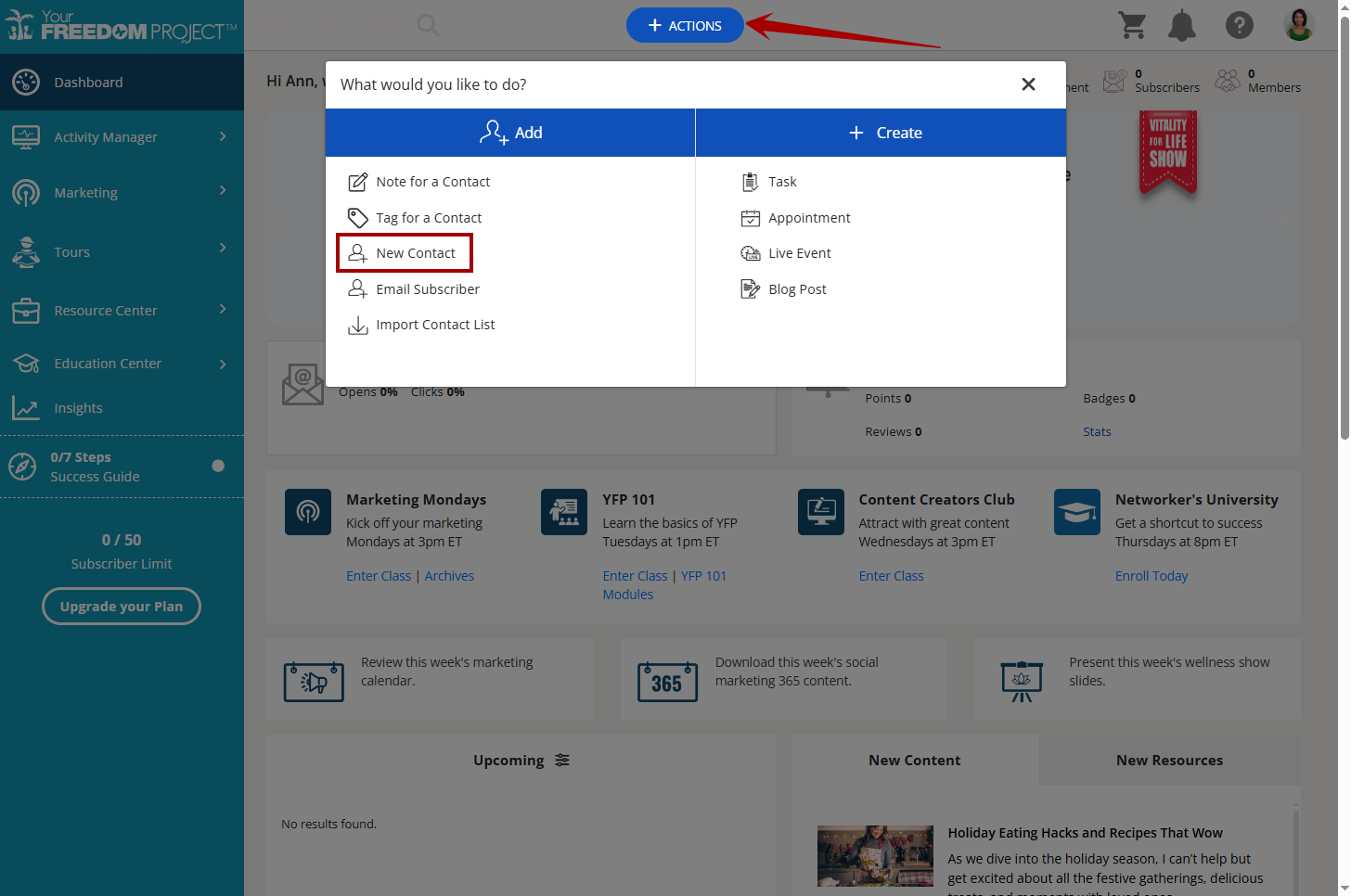
1. Log in to your account. Click + ACTIONS, then click New Contact.
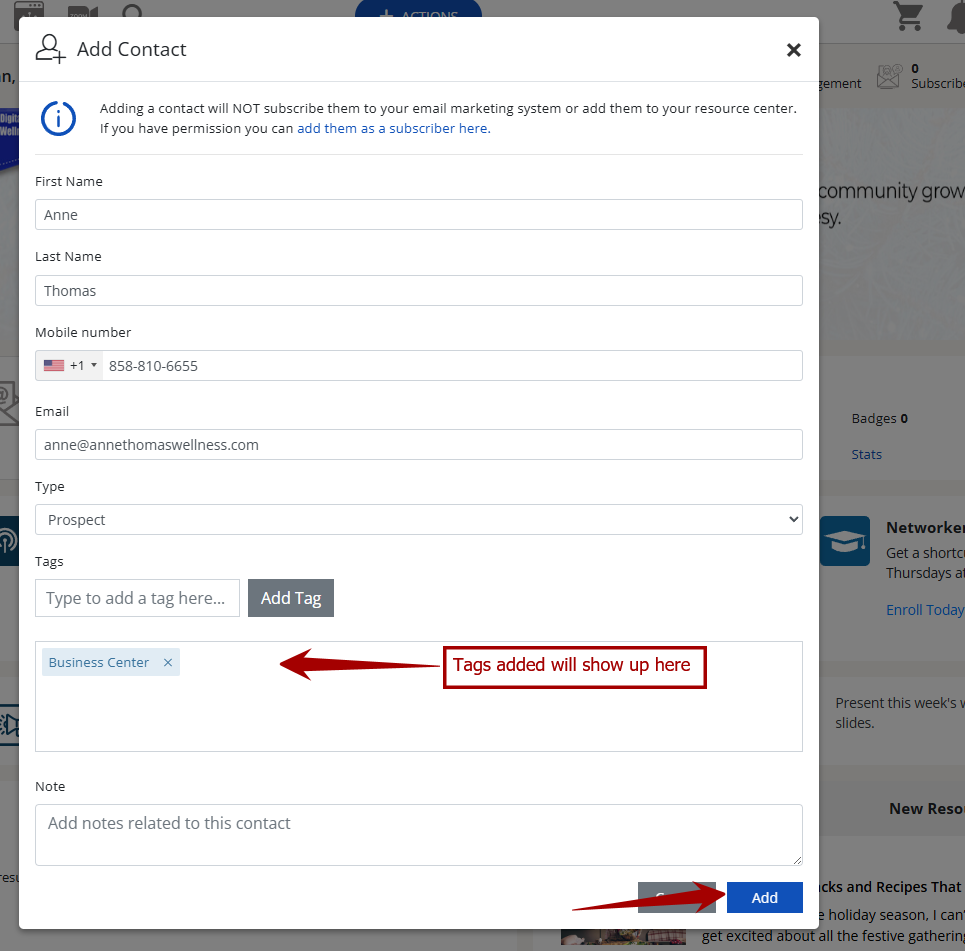
2. Fill in the details of your contact and select the Type. Adding Tags can help you categorize your contact and you can also add a note related to the contact. Once done, click Add.
New Subscriber
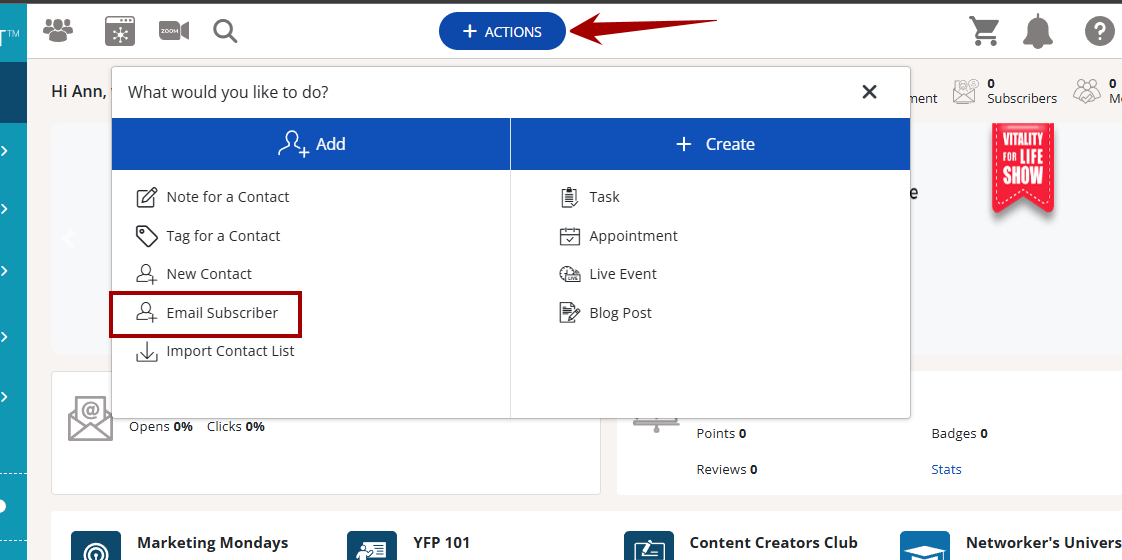
1. Log in to your account and in the Dashboard, click + ACTIONS, then click Email Subscriber.
2. Check and read the on-screen details. Click on These contact has given me consent to send them email then click Next.

3. Fill in your subscriber's details. Select the Type and you can also add tags to categorize your subscriber.
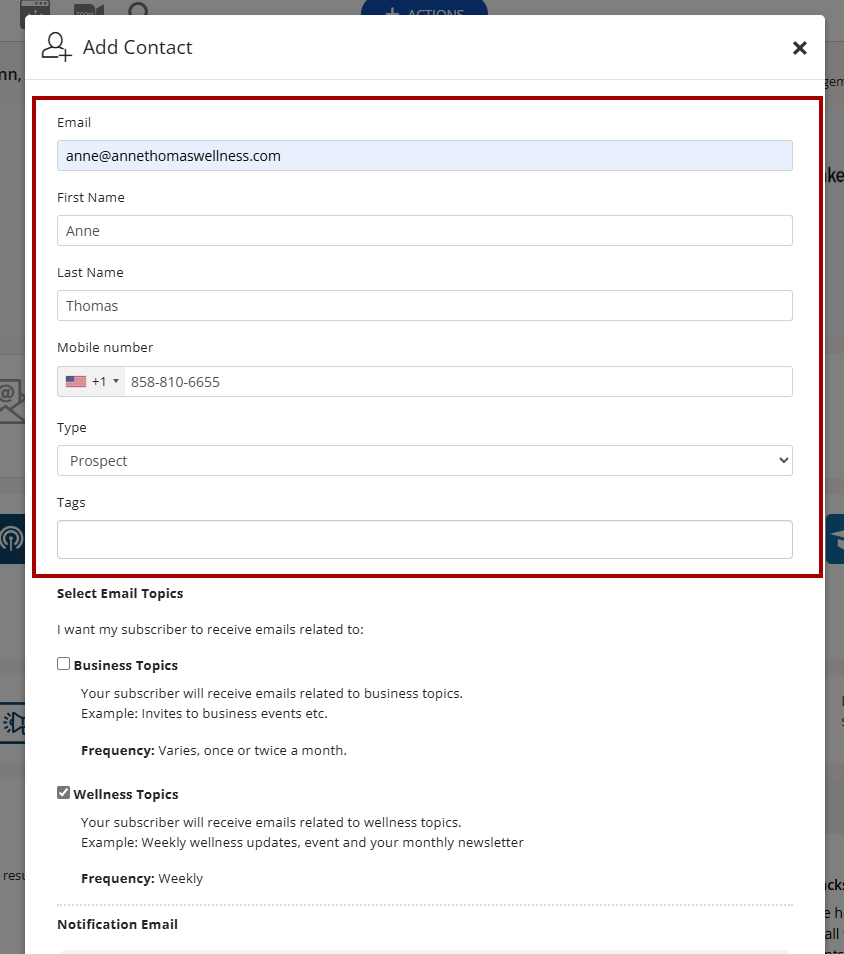
4. Select the email topics that your subscriber will receive.
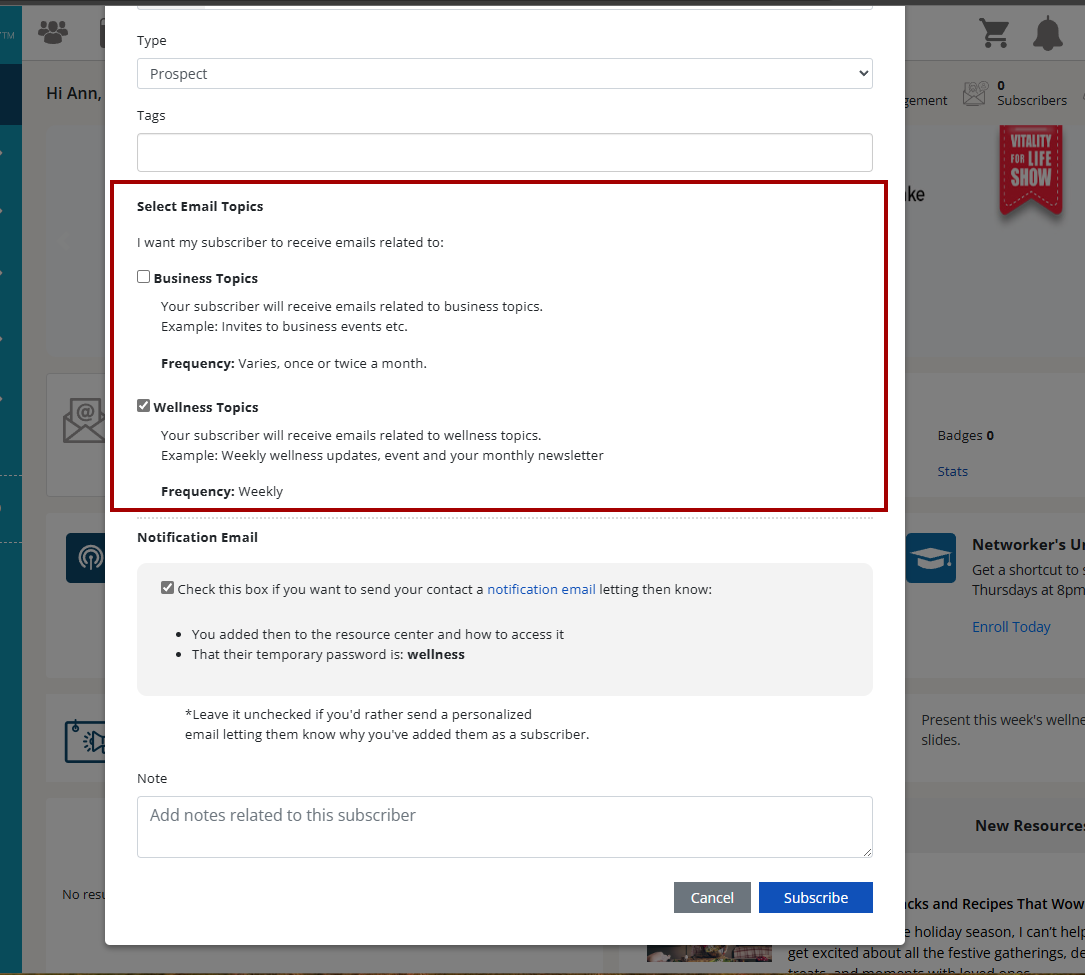
5. Check the Notification Email checkbox if you want to send your contact a notification email. You can leave it unchecked if you prefer sending a personalized email.

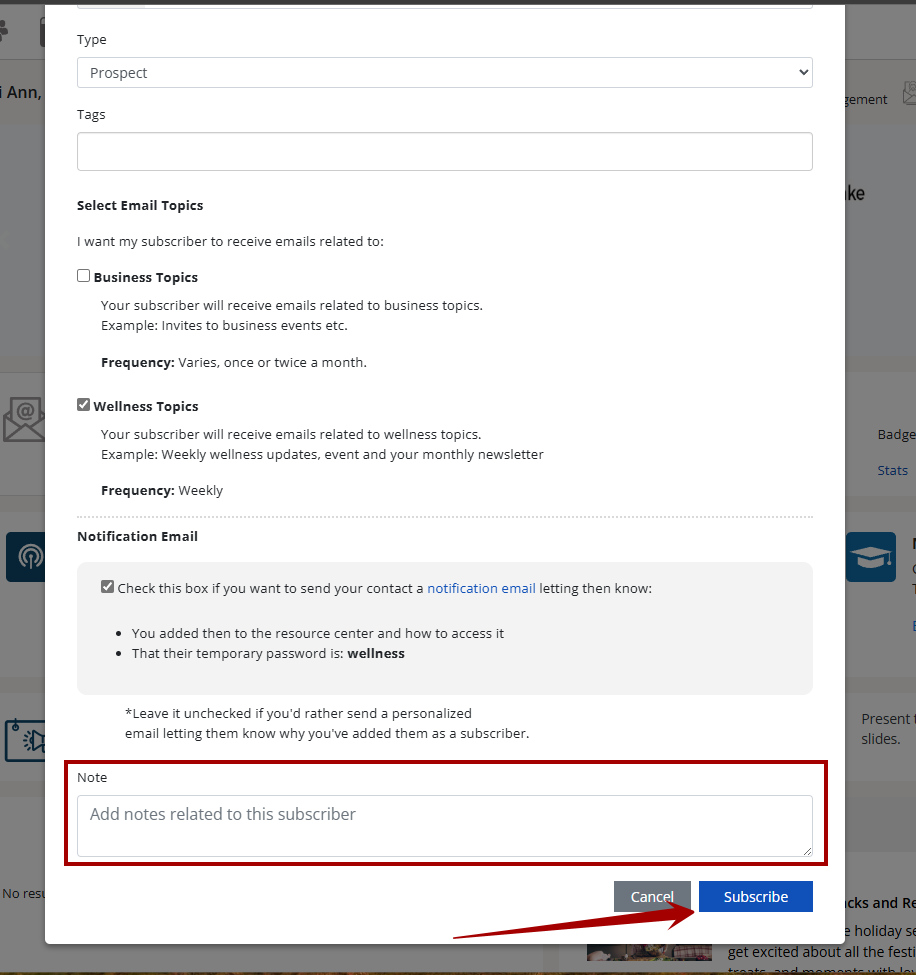
6. You can also add a note related the subscriber. Once done, click Subscribe.
1. Log in to your account. Click + ACTIONS, then click New Contact.
2. Fill in the details of your contact and select the Type. Adding Tags can help you categorize your contact and you can also add a note related to the contact. Once done, click Add.
New Subscriber
1. Log in to your account and in the Dashboard, click + ACTIONS, then click Email Subscriber.
2. Check and read the on-screen details. Click on These contact has given me consent to send them email then click Next.
3. Fill in your subscriber's details. Select the Type and you can also add tags to categorize your subscriber.
4. Select the email topics that your subscriber will receive.
5. Check the Notification Email checkbox if you want to send your contact a notification email. You can leave it unchecked if you prefer sending a personalized email.
6. You can also add a note related the subscriber. Once done, click Subscribe.